Build Before You Buy
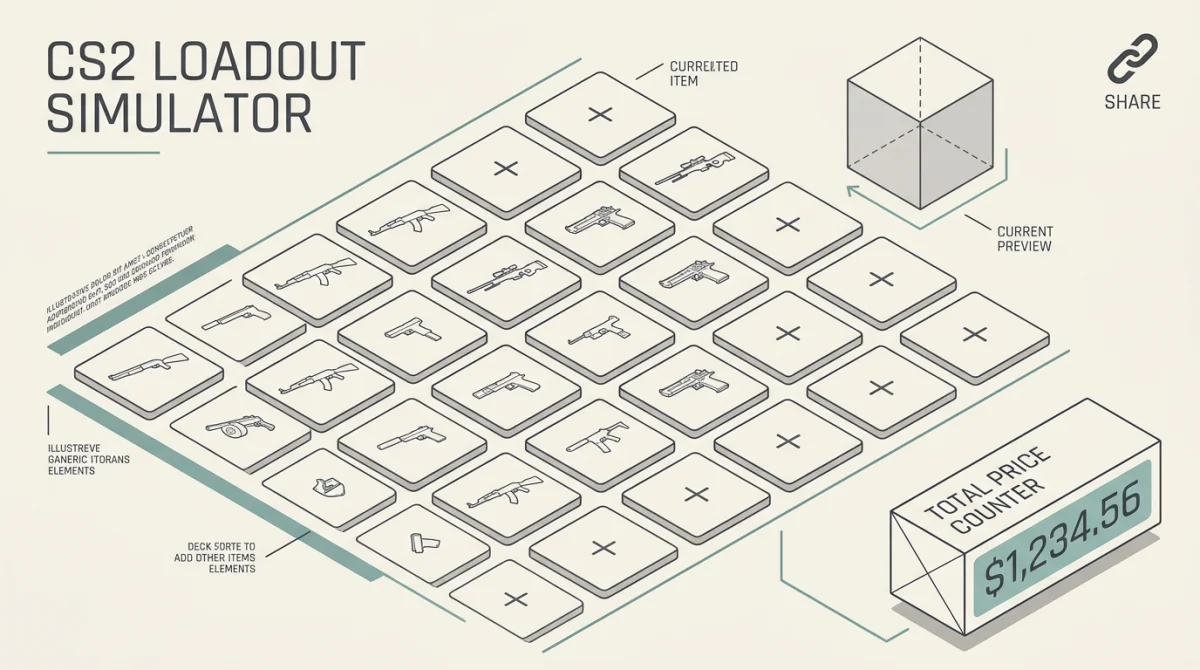
Instead of keeping a messy spreadsheet or buying skins blindly, you should use the TAKE.SKIN Simulator. Our tool allows you to build a complete 3D inventory, see the real-time cost, and share your dream loadout with the community. Here is how to use it effectively.
Step 1: Access the Simulator
Navigate to the TAKE.SKIN Simulator from the main menu.
You will be presented with a clean interface featuring every weapon slot in the game, from your Primary Rifles down to your Zeus x27.
Step 2: Select Your Weapons
Click on any empty weapon slot (e.g., the AK-47 slot). This will open up a searchable database of every single skin available for that weapon.
- Filter by Price: If you are building a budget loadout, set the maximum price filter to $10 to only see affordable options.
- Filter by Color: Building a Red Themed Loadout? Use the color filter to instantly find the AK-47 | Bloodsport or Redline.
- Select Wear: Choose the exact float condition you want (Factory New, Field-Tested, etc.). The simulator will automatically fetch the current market price for that specific wear.
Step 3: Add Stickers (The Fun Part)
A loadout isn't complete without crafts. Once you select a weapon skin, click the "Add Stickers" button.
You can search through our entire database of thousands of tournament and community stickers.
- Want to see what four Titan Holos (Katowice 2014) look like on a default AK-47? You can build it in seconds.
- The simulator will automatically add the cost of the unapplied stickers to the total price of your loadout, giving you an accurate estimate of what the "craft" will cost to execute in reality.
Step 4: Analyze the Total Cost
As you add items to your simulated inventory, the Total Value counter at the top of the screen will update in real-time.
- Market Comparison: The simulator doesn't just show you the Steam Community Market price. It aggregates data to show you the lowest possible "Cash Price" across trusted third-party marketplaces, saving you money.
- Budget Check: If your total exceeds your budget, you can easily click on an item and downgrade its wear from Factory New to Field-Tested to see how much money you save. (Read our guide on Why Skin Float Matters).
Step 5: Save and Share
Once your masterpiece is complete, you don't want to lose it.
- Click the "Save Loadout" button.
- Give your loadout a catchy name (e.g., "My $50 Blue Dream Loadout").
- The simulator will generate a unique, permanent URL for your loadout.
You can copy this URL and paste it into Discord, Reddit, or Twitter. Anyone who clicks the link will instantly load your exact inventory simulation, complete with the current real-time prices of the items.
Conclusion
Never buy a skin without testing it in a cohesive loadout first. By using the TAKE.SKIN Simulator, you can plan your purchases, avoid clashing colors, and ensure you stay perfectly within your budget. Start building your dream inventory today!